
Before you start
Use WordPress 6.4 or later and PHP 8.2 or later. Install and activate Prajesh Business Contact Checker. An administrator with manage_options permission can configure rules and run scans.
This tutorial documents my plugin’s version 0.3.2. The screenshots come from a local test site using fictional rule values. They illustrate the workflow, not a claim about your website’s contacts.
1. Gather current and retired contacts
Before scanning, list the email addresses and phone numbers your business currently uses. Include legitimate branches, departments and locations. Separately list contacts you know have been retired.
For example, hello@example.com could be an approved demonstration contact and old@example.com a retired one. Replace these examples with your own confirmed values.
Keep the approved and old lists separate. An old-list match takes priority if the same value appears in both.
2. Save your contact rules
Open Tools → Prajesh Business Contact Checker, then select Contact rules. Enter one value per line in the approved email, approved phone, old email and old phone fields. Click Save contact rules.
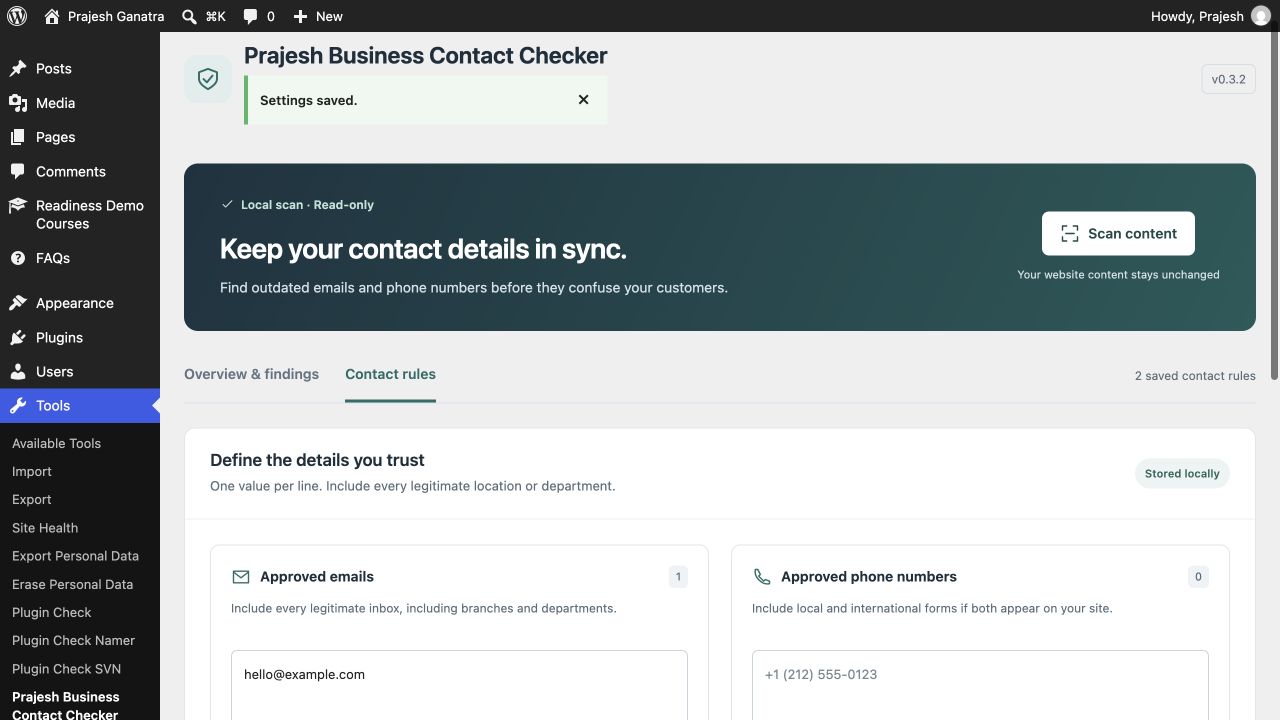
If you only want to locate known old contacts, leave the corresponding approved list empty. That disables unapproved-detail findings for that contact type while preserving searches for the old values.
Phone punctuation is ignored, but country codes matter. Include both local and international forms if your website legitimately uses both. Phone matching is heuristic, so review number matches carefully.
3. Scan supported saved content
Click Scan content. The scan runs on your WordPress site and does not replace or edit content. Open Overview & findings to inspect the report.
Coverage includes supported published posts, pages and public custom post types; saved reusable blocks, navigation blocks and block templates; supported active classic text, HTML and block widgets; and the site administration email.
This is not a crawl of every rendered page. Theme files, page-builder metadata, form notification recipients, external PDFs, text inside images and remote content are outside the scan’s coverage.
4. Distinguish old contacts from contacts needing review
Known old details match your retired-contact lists. Needs review means a detected contact is outside a configured approved list. It may still be a legitimate department inbox or another intentional difference.
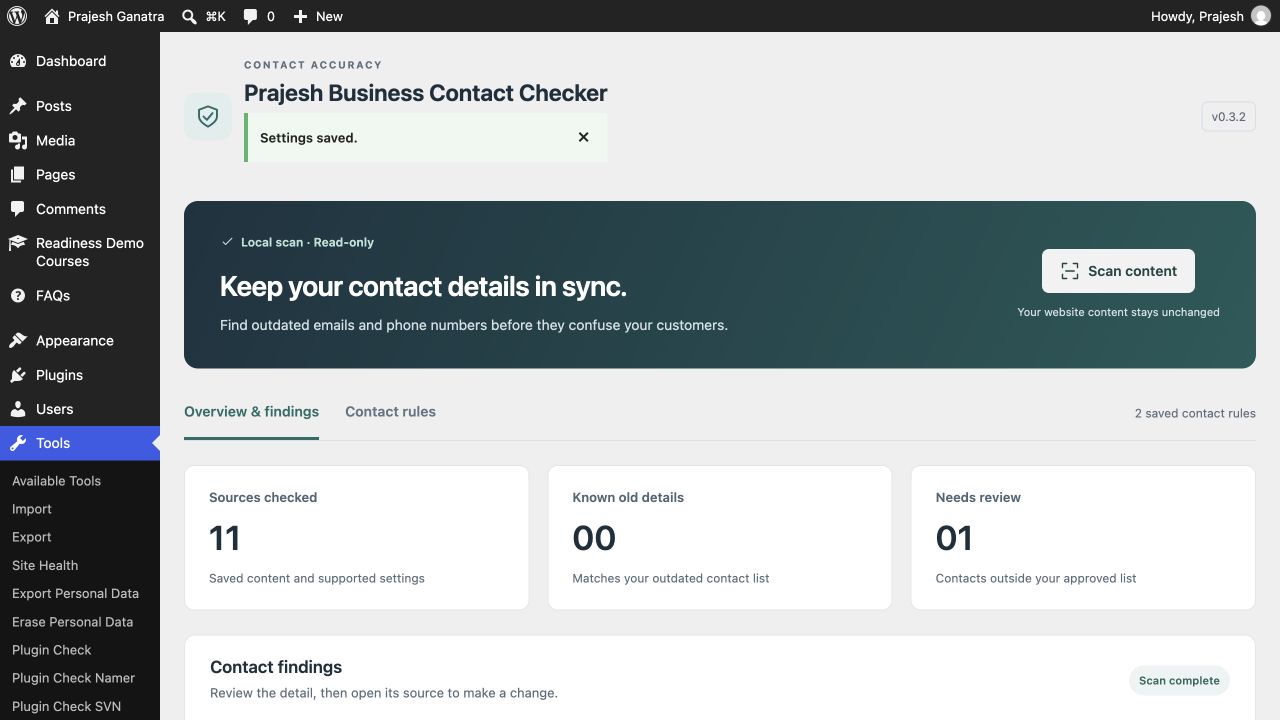
Use search to find a contact or source, and the status filter to focus on old details or review items. Read the source before deciding what to change.
You can dismiss an intentional difference for the current report. Dismissals are not remembered between scans; add confirmed legitimate contacts to your approved rules when appropriate.
5. Edit the source deliberately
Use Edit source where an editing link is available. Confirm which page, widget, template or setting contains the contact, then make the correction through the normal WordPress editor.
Do not globally replace every different number or inbox. A sales team, support team and regional office can all need separate contacts. The scan helps you locate candidates; the business owner or editor decides which values are correct.
The plugin does not send a verification message or test whether an inbox receives mail. For a site administration email change, follow WordPress’s normal confirmation process.
6. Scan again and inspect uncovered areas
After saving corrections, return to Contact Checker and run a new scan. Confirm that the known old contact no longer appears in the supported source. Clear relevant caches and check the visible page as part of your own review.
Separately inspect form notification settings, page-builder fields and theme templates where your site uses them. A clean report does not prove that every contact on the website is current.
Privacy, storage and troubleshooting
Are my contacts sent to another service?
No. Rules stay in your WordPress database and scanning uses same-site administration requests. The plugin has no external scanning service, tracking or cloud account.
Are scan reports retained?
Findings are displayed in your browser rather than stored as reports. Rules remain in WordPress options. Deactivation preserves rules; uninstall removes them.
Why does another number appear as a phone?
Phone detection is heuristic and can identify other numeric strings. Check the surrounding source before changing anything.
Does this verify addresses, opening hours or business listings?
No. The current scope is email addresses and possible phone numbers. It does not certify security, legal compliance or the accuracy of every business fact.