
Before you start
Use WordPress 6.5 or later and PHP 8.2 or later. Install and activate Prajesh FAQ Organizer through Plugins → Add New Plugin. Try the workflow on a local or staging site first.
This guide documents my plugin’s version 0.2.7. It uses one FAQ library and a saved selection for each page. You do not need to duplicate answers to reuse them.
1. Create your shared FAQ library
Open FAQs → Add FAQ. Enter the question as the title and the answer in the content editor. Publish the FAQ when its answer is approved. Repeat for your other questions.
For a school website, your library might include “How do I apply?”, “Which documents do I need?” and “How can I contact support?”. These are examples; use answers your team has checked.
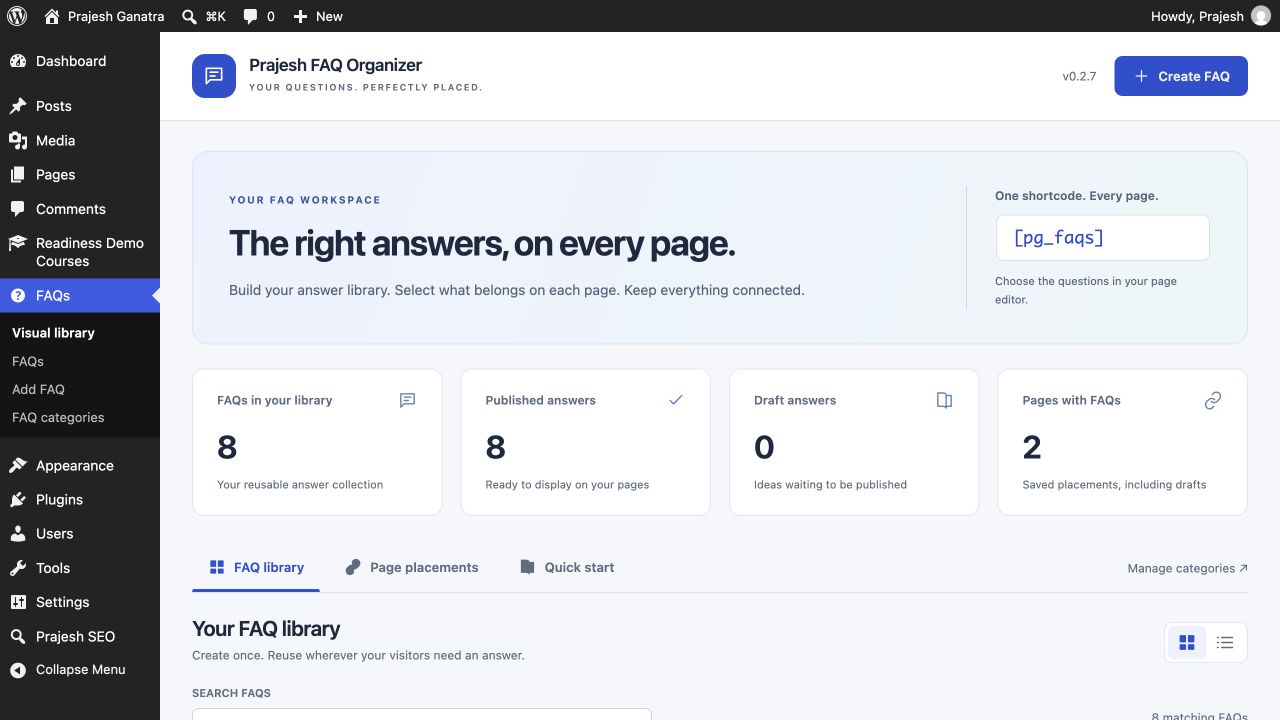
Published FAQs are available to the shortcode. Draft, private and password-protected FAQs are excluded from public output. FAQ records do not have public single or archive pages.
2. Show every FAQ on your main FAQ page
Edit your main FAQ page and insert a WordPress Shortcode block containing [pg_faqs]. In the page’s FAQs for this page panel, leave Show all published FAQs checked. Save or update the page, then view it.
All mode sorts questions by title. Newly published FAQs join the output automatically, so check that every question belongs on your main FAQ page.
The plugin detects its shortcode in supported core post and page editors. Confirm that you entered the shortcode, then save and reopen the editor if necessary. Builder metadata, widgets and theme templates need manual configuration rather than automatic placement detection.
3. Choose a smaller selection on another page
Edit your admissions page and add the same [pg_faqs] shortcode. Uncheck Show all published FAQs in its page panel. Search the questions or answers, then use the plus action to add only the relevant FAQs.
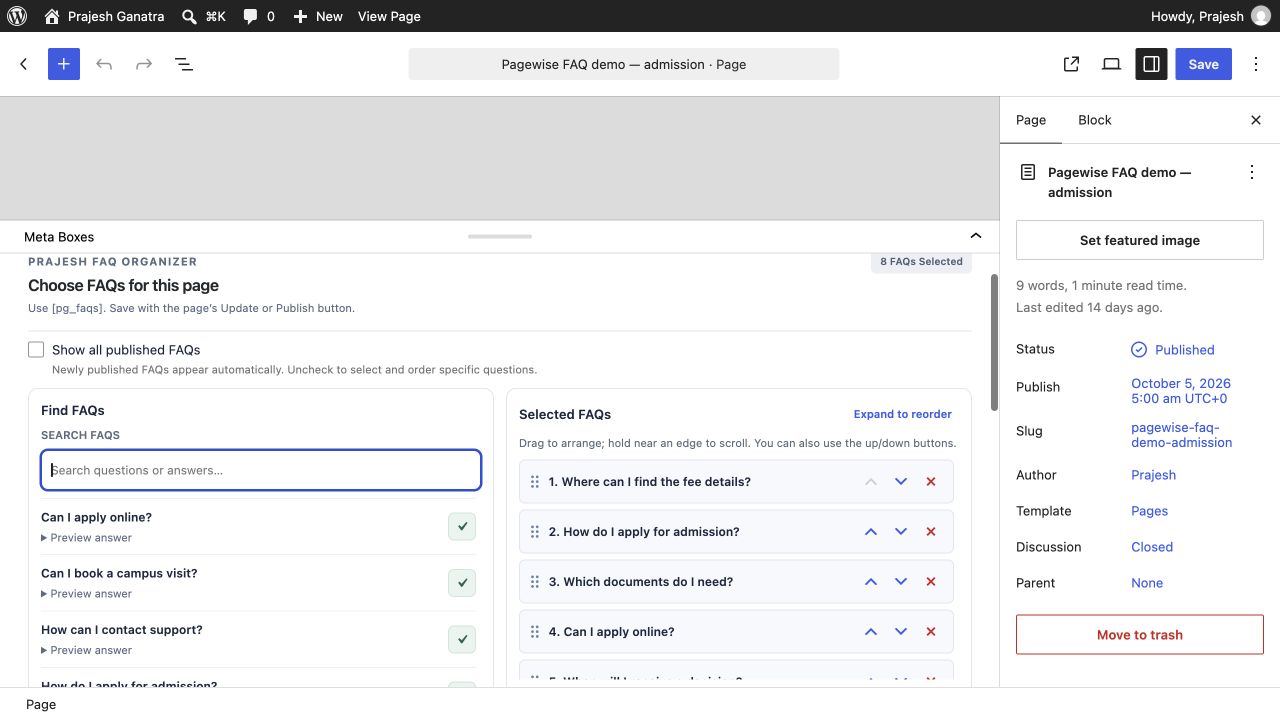
For example, choose application and document questions for Admissions, and contact questions for Support. Leave unrelated questions out. The picker prevents adding the same FAQ twice to that selection.
An empty selected list displays nothing. If your FAQs disappear, check whether all mode is off and no questions are selected.
4. Arrange and save the page selection
Drag selected questions into the reading order you want, or use the up and down actions. For a longer selection, open the expanded ordering view so you have more room to work.
Use the normal WordPress Update or Save action to persist the page’s selection. Selecting or moving a question without saving the page is not the final step.
Open the page on the frontend and check the order. This ordering belongs only to this page; it does not rearrange another page’s selected FAQs.
5. Choose a layout for each placement
Use [pg_faqs layout="accordion"] for expandable answers, or [pg_faqs layout="list"] for an open question-and-answer list. The default shortcode uses the accordion.
| Page | Selection | Shortcode |
|---|---|---|
| Main FAQ page | All published FAQs | [pg_faqs] |
| Admissions | Application questions | [pg_faqs layout="accordion"] |
| Support | Contact questions | [pg_faqs layout="list"] |
Layout belongs to the shortcode; question selection and order belong to the page. Two shortcodes on the same page share that page’s selection, although their layouts can differ. Advanced template use can specify a publicly accessible source page with [pg_faqs source="123"].
6. Update once and check placements
Edit the original FAQ when an answer changes. Every placement reads that shared content. If an old answer remains visible, clear your site or page cache and check again.
Use FAQs → Visual library and the usage information to review reported placements, including show-all placements and saved draft pages. Reports index the plugin shortcode in supported saved public post-type content; they are not a complete crawl of every rendered page.
Troubleshooting and limits
Why is a published question missing?
Check the page’s saved selection, confirm the FAQ has no password, and clear relevant caches. Selected mode does not automatically include every newly published question.
Can categories filter frontend FAQs?
Not in this release. Categories organize the dashboard. Choose questions individually for a page’s frontend selection.
Does it add FAQ schema or execute shortcodes in answers?
No. Version 0.2.7 does not output FAQ schema, and answer shortcodes are not executed. The accordion uses the WordPress Interactivity API with a native details fallback.
What happens on deactivation?
FAQ records and page selections are retained. The plugin must be active to render its shortcode output.