
A WordPress record can have a title while still missing an excerpt, featured image or custom field. Checking each record manually becomes repetitive when your team maintains a large collection.
My free Prajesh Content Readiness plugin lets you define requirements and review missing saved values in a grid. This guide covers version 0.1.0, from your first rule set to a CSV issues report.
Before you start
- Use WordPress 6.5 or later and PHP 8.2 or later.
- Install and activate Prajesh Content Readiness through Plugins → Add New Plugin.
- Use an administrator account to configure requirements. Editors and authors can audit records they have permission to edit.
- For your first audit, start with Posts and a few familiar requirements, such as Title and Content.
The audit checks configured saved values. It does not assess accuracy, copy quality or accessibility compliance, and it does not prevent publishing or automatically edit records.
The screenshots use fictional courses in a local WordPress installation. The course content type and example custom fields already exist on that site; they are not created by this plugin.
1. Choose the content you want to review
Open Tools → Content Readiness and select your content type. Requirements are stored separately for each type, so your blog posts can have different expectations from your pages or courses.
Start with the fields available on your own site. The field list can include supported WordPress fields, public registered metadata exposed to the REST API, and supported top-level ACF fields when ACF is active. An arbitrary custom metabox without a supported field definition will not appear automatically.
2. Define what a complete record needs
Open Requirements and choose fields from Available fields. Keep each requirement relevant: a blog post may need a featured image, while a course may need a duration and brochure URL.
| Field | When to require it |
|---|---|
| Title and Content | For every applicable record |
| Course duration and Brochure URL | For every applicable record with supported field definitions |
| Application URL | When the saved Accepting applications value equals open |
For a conditional requirement, choose the field to compare and enter its exact saved value. For example, a choice displayed as “Open” may be stored as open. Use the stored value rather than assuming the visible label is identical.
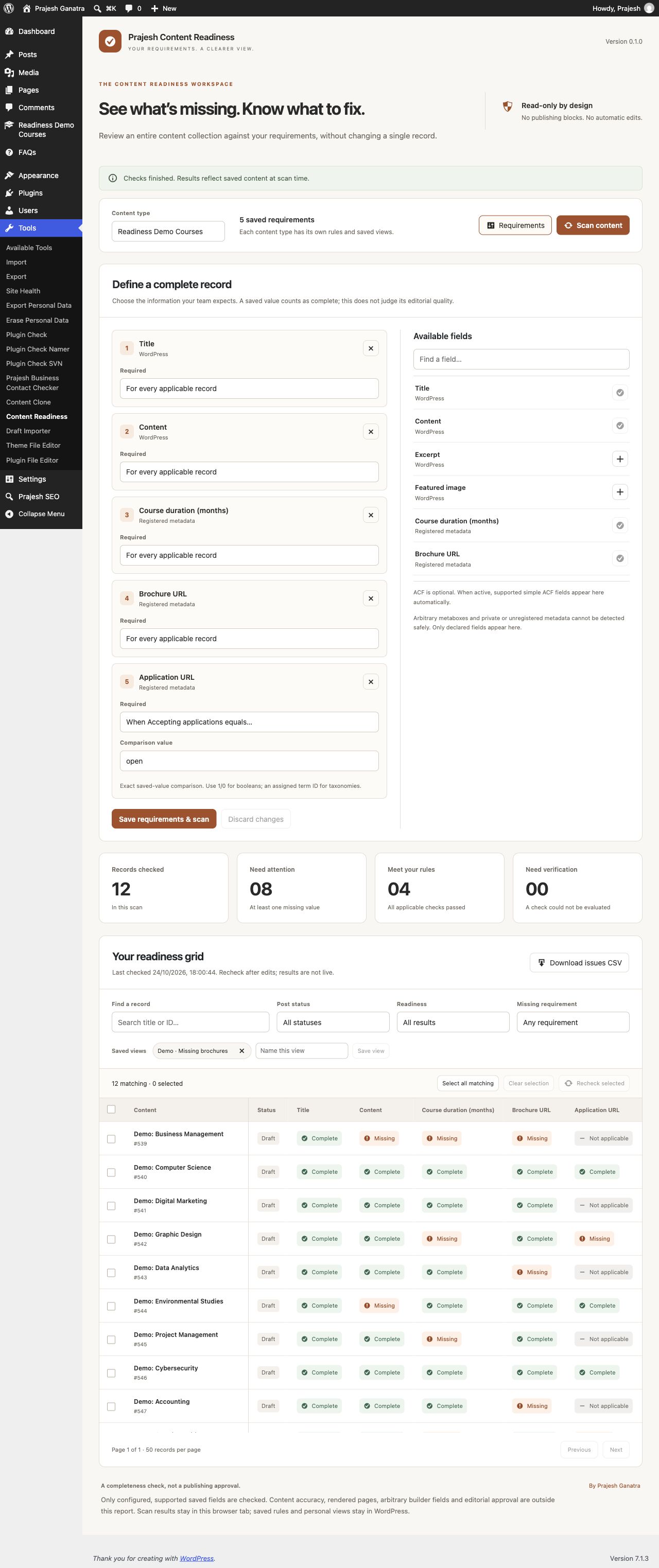
Select Save requirements & scan to save the rules and begin the audit. You can return to this panel later to change the requirements.
3. Run the audit and read the results
Use Scan content when you want to check the saved records against your configured rules. The grid displays 50 records per page. Scanning runs in batches of 100, without a total-record quota; larger collections take longer to finish.
The summary separates records that meet your rules from records needing attention or verification. Individual cells explain what happened:
- Complete: a saved value satisfies the configured presence check.
- Missing: a required saved value is absent or its supported attachment reference is invalid.
- Not applicable: the condition for this requirement does not apply.
- Unsupported: the check cannot be evaluated with the available field definition or condition.
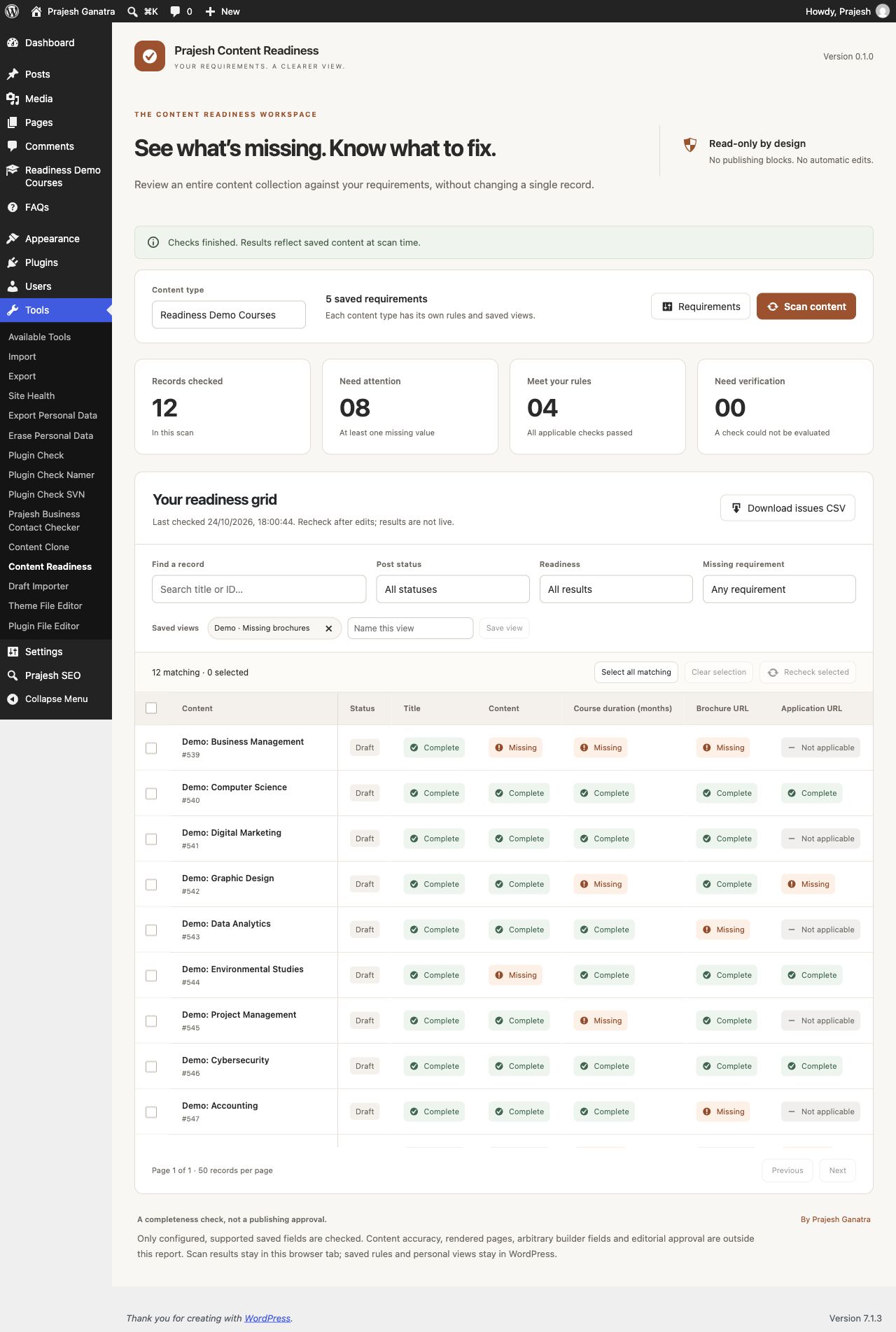
Select a result cell when you need its explanation. Review Unsupported results rather than treating them as passed checks. Saved numeric zero and false boolean values count as present; they are not automatically marked missing.
4. Focus on one missing detail
Use Find a record, Post status, Readiness and Missing requirement to narrow the grid. For example, choosing Brochure URL in the course example focuses the review on records missing that requirement.
Select the individual records you want to work through, or use Select all matching. The selected count helps you keep track of the group. Filtering gives your team a focused task instead of a long, mixed list of issues.
5. Edit in WordPress, then recheck
Use a record's Edit link to open the normal WordPress editor in a new tab. Add the missing information and save the record there. Return to the audit tab, select the affected record and choose Recheck selected.
The result updates from the saved values. Editing remains a separate action: the plugin does not fill fields, rewrite content or publish records for you.
The grid is not a live monitor. Recheck after edits, or run a fresh scan after a wider round of changes. Refreshing the browser clears the scan results, so scan again if you reload the page.
Questions and practical limits
Does a Complete result mean the content is ready to publish?
No. It means the saved value passes a configured presence check. Your team still needs to review accuracy, wording, formatting and publication requirements.
Does a saved brochure URL mean the link works?
No. The plugin does not request remote URLs. Attachment checks confirm supported WordPress attachment references, not whether a file is available on disk or safe to download.
Can it check every ACF field or page builder?
No. Supported ACF fields are top-level simple fields, including supported images and files. Repeaters, groups, clones, flexible content and other complex fields are outside this release. Arbitrary builder metadata and rendered page output are not scanned. See the plugin details for the current scope.
Where are settings and results stored?
Rules are stored in a WordPress option and personal views in user metadata on your site. Scan results stay in the current browser tab and disappear on refresh. No external scan service, tracking or subscription is used.
Why is a field unavailable or a result Unsupported?
Check that the field has a supported definition and that your account has permission to read it. If a definition or integration changed, review the requirements and scan again. Unsupported checks should be investigated, not counted as complete.